Making changes to a website in production always feels risky.
An update, a new plugin or even a simple visual adjustment can end up affecting the website your customers see.
That’s why, in professional environments, you don’t work directly on the live website.
You use a staging environment. And if your hosting includes Softaculous, the process is much simpler than you might imagine.
In fact, you can test optimizations without risks before applying anything to your live website.
In this article, we explain how WordPress staging with Softaculous works, step by step, using the same system we use daily at JC Hosting to manage client websites without taking unnecessary risks.
Accessing Softaculous from Your Hosting Panel
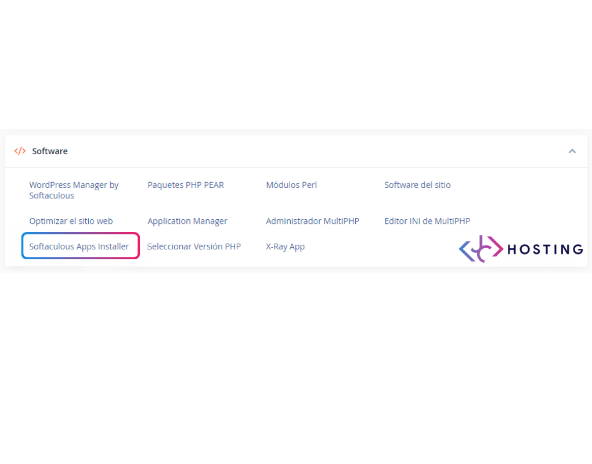
This is where everything begins.
From your hosting control panel, you access Softaculous Apps Installer, the tool that centralises WordPress management.
If you want to learn all its features in detail, we recommend this complete Softaculous guide.
At JC Hosting, we work with hosting panels where Softaculous is natively integrated, because it allows us to have full control over installations, backups, cloning and staging without relying on external plugins or improvised solutions.
This first step is simply about locating Softaculous and entering the tool.
Locating Your WordPress Installation
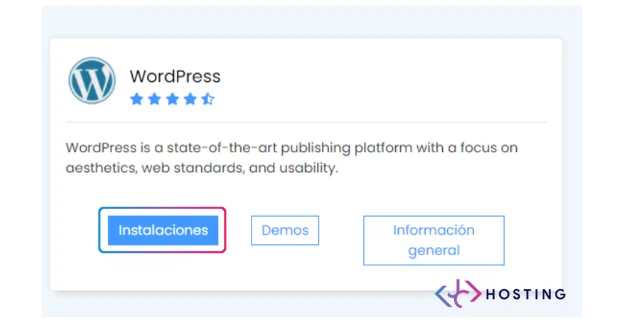
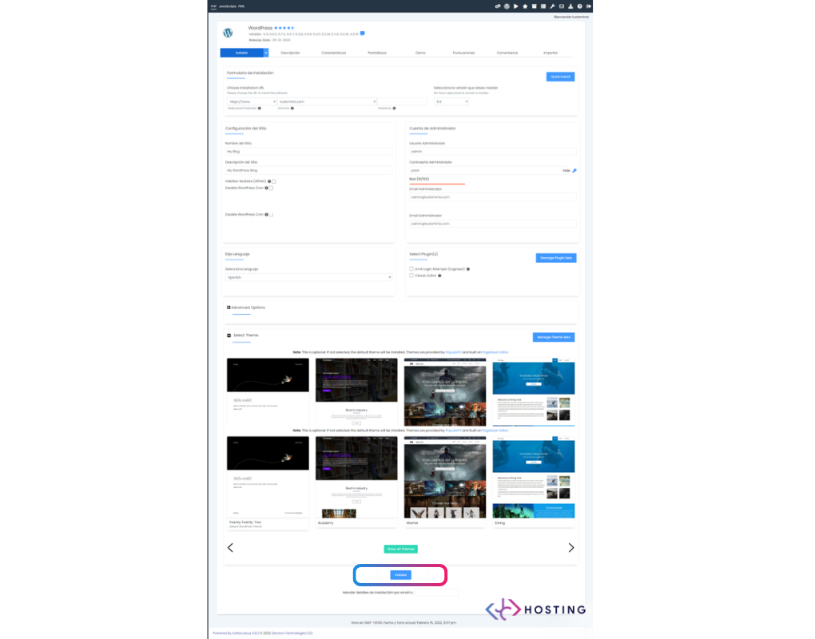
Once inside, Softaculous shows the available applications.
Select WordPress and go to the installations section.
Softaculous automatically detects the websites you already have active.
This is essential, because staging always starts from an existing installation — never from scratch.
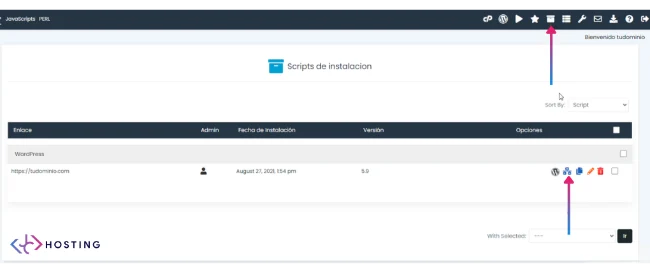
Accessing Installation Management
In this view, you will see your live website listed, including its domain, version and management options.
From here, everything can be controlled: updates, backups, cloning… and, of course, staging.
To enjoy all these advantages, the ideal is to have WordPress hosting with Softaculous included.
This is one of the points where the difference between basic hosting and properly structured hosting becomes clear: everything is centralised, visible and accessible.
Creating a Staging Copy of Your Website
From the installation options, choose to create staging.
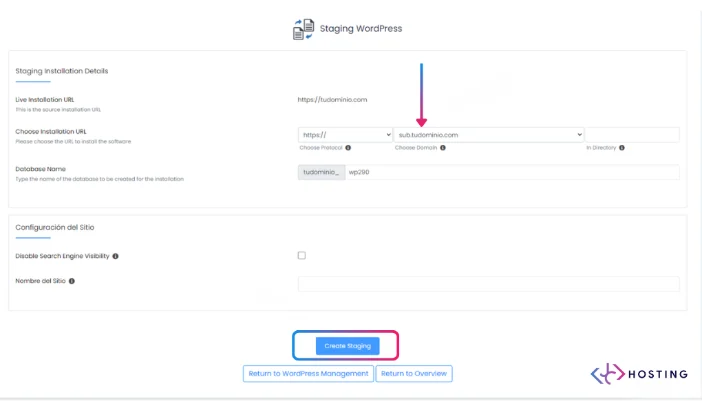
Softaculous will take you to a screen where you define where the test copy will be created.
Normally, this is done on a subdomain (for example, staging.yourdomain.com), completely separate from the live website.
This step is crucial: the main website is not touched.
Configuring and Launching the Staging
Softaculous will show the staging details:
URL, database and basic settings.
There is no need to complicate things. In most cases, you simply confirm and click Create Staging.
Within seconds, Softaculous creates an exact copy of your website, ready for testing.
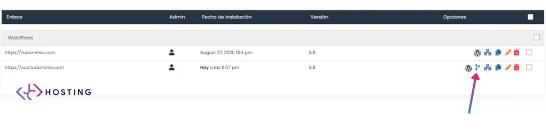
Viewing the Live Website and the Staging Site Side by Side
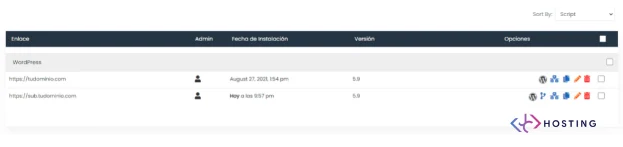
Once created, Softaculous shows both installations:
the production website
the staging website
From this point, you can enter the staging environment, test changes, update plugins or modify whatever you need with complete peace of mind.
This is exactly how we work at JC Hosting with professional projects:
first test, then decide.
Pushing Changes from Staging to Production
When everything has been reviewed and works correctly, Softaculous allows you to push the changes from staging to the live website.
This is the key moment in the process.
Here you decide when to apply the changes and avoid surprises.
It is an organised, secure and professional way of working, very far from the “test and cross your fingers” approach.
Why We Always Work with Staging at JC Hosting
Staging is not an “extra feature”. It is a proper way of working.
At JC Hosting, we use environments with Softaculous and staging because they:
Reduce errors
Prevent unnecessary downtime
Protect the production website
Provide peace of mind to clients
Allow us to work with professional criteria
It’s not just about having the tool, but about knowing when and how to use it.
WordPress staging with Softaculous is one of the simplest and safest ways to make changes to a website without taking risks.
If your website is important to your business, working directly on production stops being a reasonable option.
Testing first, reviewing calmly and deciding when to apply changes is what makes the difference between a website managed “just enough” and a website handled in a truly professional way.