The 401 error appears when you try to access a website or resource and the server does not authorize you, it is not that the website is down nor is it a loading error.
It is something more specific: there is a barrier between you and the access, and the server does not validate who you are or decides that you cannot pass, the problem is that many times you do not know why, and that is where this error stops being simple.
What the 401 error actually is
The HTTP 401 (Unauthorized) code indicates that the server requires valid authentication to allow access.
This means:
The resource exists
The server is working
But it requires correct credentials
It usually appears in:
Admin panels (/wp-admin, cPanel…)
Webmail
Protected APIs
Private directories
Staging environments
There is always an authentication layer involved.
How the 401 error works (to understand where it fails)
Every time you access a protected area, this happens:
The browser requests access
The server responds: “I need credentials”
The browser sends username/password or token
The server validates that information
If it does not match → 401 error
The failure can be in any of those points, which is why it often seems random… but it is not.
All the real causes of the 401 error (ordered by impact)
This is where most articles fall short. Let’s go into detail.
1. Incorrect credentials or expired sessions
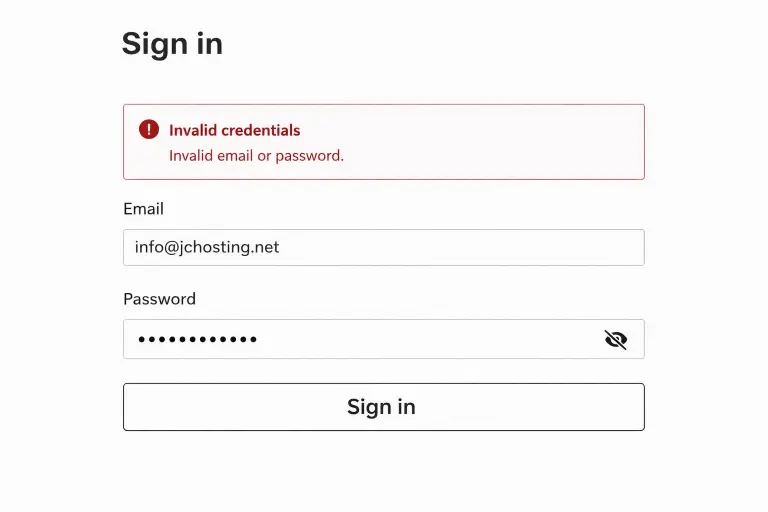
This is the first thing you should check, but do not stop here.
Typical errors:
Incorrect autofill
Password updated but not saved
Expired session
It is the most basic, but also the fastest to rule out.
2. Cache, cookies or session problems
The browser stores data to speed up access, but:
Old cookies
Invalid tokens
Corrupted sessions
The server receives incorrect data and blocks access even if you have done nothing wrong.
Very common in WordPress and webmail.
3. Incorrect .htaccess configuration
The .htaccess file can:
Protect directories with a password
Restrict access
Define authentication rules
Typical errors:
Incorrect path to the user file
Duplicate rules
Poorly defined syntax
A small mistake here blocks all access.
4. Security plugins or firewall (WordPress)
Many plugins apply automatic rules:
Login attempt limits
IP blocking
Suspicious behaviour detection
The problem is they do not always differentiate well between attack and normal usage.
Result: you block yourself.
If you are encountering similar access errors, it is important to understand that not all of them come from the same cause. For example, an Error 500 on your website has a completely different origin, and in many cases it is more related to how the server responds than to the access itself.
5. File and folder permissions
If permissions are not correctly configured:
The server cannot validate access
Or blocks it for security
Common values:
Files: 644
Folders: 755
It is not the most frequent, but it is critical when it happens.
6. Authentication in APIs or external integrations
In APIs, the 401 error is very common:
Invalid token
Incorrect API key
Headers sent incorrectly
Here the issue is not visual, it is communication between systems.
7. Server configuration (the big forgotten one)
This is where recurring problems usually start.
Many servers apply rules such as:
Automatic IP blocking
Access limits per second
Aggressive anti-bot systems
Poorly configured firewalls
And this happens without you seeing it.
You only see the 401 error, but the origin is in the infrastructure, if you want to understand what is behind these types of issues, here you can see What features a professional hosting should have for businesses and why not all environments behave the same in these situations.
When the 401 error stops being normal
A one-time error is not a concern.
But there are patterns that indicate something more serious:
It appears without changes
It is intermittent
It affects different areas (web, email, API…)
It fixes itself and then comes back
It also happens to other users
This is not a one-time failure. It is system behaviour.
How to fix it step by step (professional order)
Step 1: Validate credentials manually without autofill
Step 2: Isolate the browser: incognito mode or full cookie cleanup
Step 3: Identify the scope: only login? whole website? email too?
This defines where the problem is.
Step 4: Review access rules (.htaccess), especially if there is password protection
Step 5: Temporarily disable security systems: plugins or tools that may block
Step 6: Check permissions: files and folders
Step 7: Review server blocks: IPs, limits, firewall
Step 8: Analyse logs
This is the real difference.
Logs tell you:
Which request fails
Which code is returned
Which rule blocks it
Without logs, you are blind.
Frequently asked questions about the 401 error
Does the 401 error mean the website is not working?
No. The website works, but access is restricted.
Can it be the hosting’s fault?
Yes. Especially when it is intermittent or you have not made changes.
Why does it appear if everything is correctly configured?
Because cache, IP blocks, server rules or security systems may be involved.
What is the difference between 401 and 403?
401 means you need to authenticate
403 means you are authenticated but do not have permission
Can it affect SEO?
Yes, if it blocks access to content or prevents crawling.
What you really should understand
The 401 error is not the problem, the problem is not knowing why it happens.
Because when you have no visibility:
You cannot prevent
You cannot optimise
You have no control
And that, in a web environment, ends up costing you.
How to avoid 401 errors structurally
It is not about fixing it once, it is about preventing it from coming back.
Clear configuration
Well-adjusted security (not excessive)
Access to logs and diagnostics
Stable infrastructure
When this is in place, errors stop being recurring, if the 401 error keeps appearing or shows up without apparent reason, the problem is rarely on the surface.
At JC Hosting, we work directly on the server, analysing logs, rules and blocks to understand what is causing the denied access and fix it at the root, not just the symptom.