If your website shows a 500 error, something almost always happens first: you lose context. You don’t know what failed, you don’t have a clear clue, and any attempt to fix it turns into trial and error.
And that’s where the real problem starts.
Because the 500 error is not the issue itself, it’s the way the server tells you that something went wrong without giving you details. Understanding this is key, because it completely changes how you should approach the situation.
What a 500 Error Really Means (and Why It’s So Confusing)
The 500 error, also known as Internal Server Error, is a generic message that appears when the server cannot complete a request, but does not specify the exact cause.
That’s what makes it so frustrating.
The root cause can be in many places: a PHP error, a plugin conflict, a theme issue, a misconfiguration in files like .htaccess, or even a server limit being exceeded. All of these different scenarios end up showing the exact same message.
That’s why trying to fix it without context usually leads to touching things blindly.
The Most Common Mistake: Acting Without Diagnosing
This is where most time gets lost.
It’s common to start disabling plugins, editing files, or restoring backups without knowing what caused the issue. The problem is that this mixes causes and makes the diagnosis even harder.
The right approach is different: first understand what’s happening, then act.
That order changes everything.
How to Identify Where the 500 Error Comes From
Before making any changes, there’s one key question: what changed right before the error appeared?
In most cases, a 500 error doesn’t appear randomly. It usually comes after installing or updating a plugin, changing the theme, modifying code, or even after an increase in traffic.
It’s also important to observe how the error behaves. It’s not the same if it affects the entire website or just specific pages, or if it’s constant versus intermittent. These differences help determine whether it’s a technical issue or a resource-related problem.
How to Fix a 500 Error in Shared Hosting
Once you have context, it’s time to act. But this is not about trying everything — it’s about following a logical order to isolate the problem.
1. Enable debug mode in WordPress
The first step is to see the real error instead of the generic message. Edit the wp-config.php file and add:
define(‘WP_DEBUG’, true);
define(‘WP_DEBUG_LOG’, true);
define(‘WP_DEBUG_DISPLAY’, true);
This usually gives you a direct clue about what’s failing.
2. Check the .htaccess file
The .htaccess file is one of the most common causes of a 500 error. Rename it temporarily and check if the website works again.
If the error disappears, simply regenerate it by saving permalinks in WordPress.
3. Disable plugins (in a controlled way)
Don’t just remove everything randomly.
Access via FTP or cPanel, go to /wp-content/plugins/, and disable them. Then reactivate them one by one until you find the one causing the issue.
4. Check the active theme
If plugins are not the issue, the next step is the theme. Errors in functions or incompatibilities can cause this type of failure.
Rename the theme folder to force WordPress to use a default theme.
5. Check server logs
This is the most important step to stop working blindly.
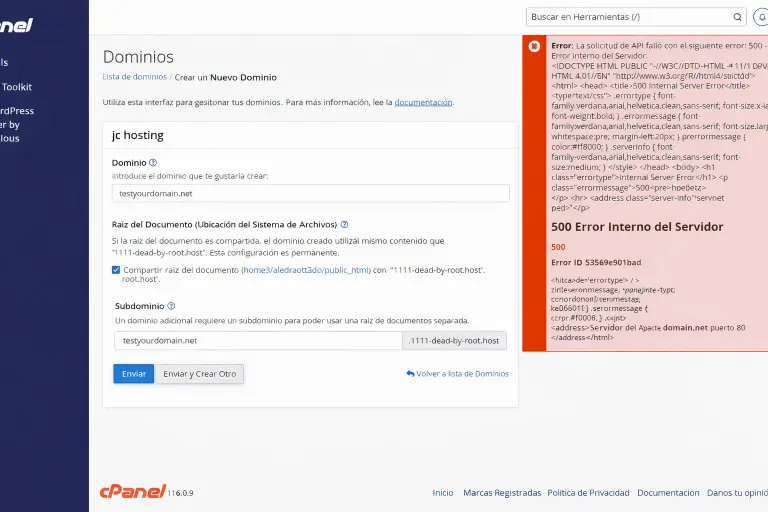
In your hosting panel (cPanel or similar), go to the error or logs section. There you will find the exact message causing the issue.
6. Verify file permissions
Incorrect permissions can block execution.
Recommended values:
folders: 755
files: 644
7. Check server limits
In shared hosting, the problem is not always code.
If the error appears during traffic spikes or intermittently, it may be related to CPU, memory, or process limits.
This is the key point: CPU limits in hosting
When the Problem Is Not Technical
This is where the perspective changes.
If the error appears during high load, intermittently, or more frequently over time, it may not be a one-time issue. Your website may have grown, and the environment is no longer able to support it.
In these cases, continuing to optimize won’t solve the problem. There’s nothing broken — there’s simply a mismatch between the project and the available resources.
How to Prevent It From Happening Again
Preventing a 500 error is not about locking everything down, but about working with criteria.
Understanding what each plugin does, reviewing logs before acting, avoiding uncontrolled changes, and keeping your environment aligned with your project are key decisions.
It’s not about eliminating errors, but about preventing them from becoming blockers.
To Keep Learning: Key Resources on Hosting Errors
If you found this post useful, having a guide to hosting errors will help you quickly identify any other status code that appears on your website. Not all errors are the same, and knowing the difference between a 500, 502, 503 or 504 will allow you to act with much more precision.
Because just as the 500 error originates on the server without giving details, other server errors such as 502 (Bad Gateway) or 503 (Service Unavailable) point to different problems: proxy failures, maintenance or general saturation.
A very specific case we often see at JC Hosting is the 500 error due to CPU limit. Here the confusion is maximum, because the browser shows the same generic message, but the real cause is that the hosting plan cannot handle traffic spikes or processes. Diagnosing this in time saves months of useless optimizations.
And if you want to go further, working with error-free hosting is not a utopia. It’s about choosing a well-dimensioned environment, with accessible logs, clear limits and support that doesn’t waste your time. At JC Hosting we have built it that way so you can focus on what matters: your project.
How We Handle This at JC Hosting
When we analyze a 500 error, we don’t start by randomly changing things.
We start by understanding the context: what changed, when it happens, and what pattern it follows.
From there, we identify the real cause, distinguish between a technical issue and a resource limit, and apply the right solution.
Because the 500 error is not the problem.
It’s the symptom.