When you see localhost:8080 in your browser, you are not visiting a public website. You are pointing to a local installation, meaning an environment running inside your own computer.
That, by itself, is not an error.
The problem starts when you were not expecting to see that address, when a migrated website is still trying to load from it, or when your domain should open a real installation but instead you end up stuck on a local route that leads nowhere.
This is where many people get confused.
Because it does not always mean the hosting is failing. Very often, what is actually failing is the transition between the local environment and the live one, a badly saved URL in WordPress, a redirect still pointing to local, or a local server that is not even running.
What localhost:8080 actually means
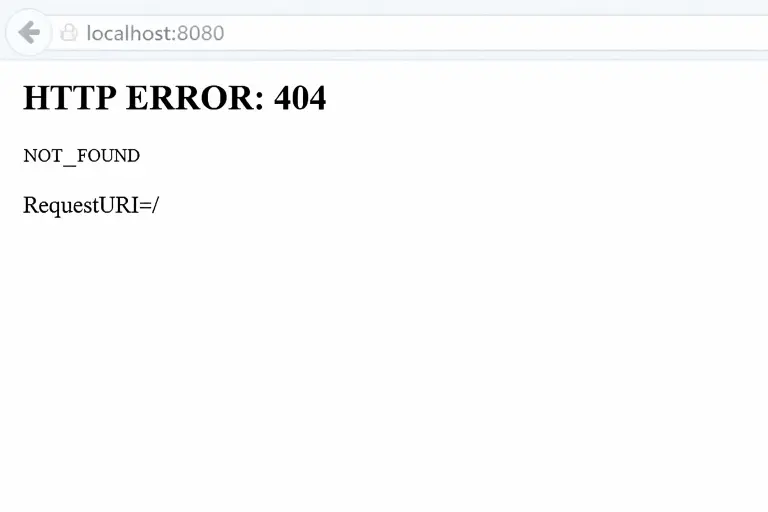
localhost refers to your own machine.
And 8080 is an alternative port that is often used when the usual port is not being used, or when a local application is configured that way by default. In web development, it is very common to see it in environments built with tools such as XAMPP, MAMP, Laragon, LocalWP or custom setups.
Put simply: if you are working locally, seeing localhost:8080 can be completely normal.
If you have already uploaded the website to the final domain and you still see this, then yes, something needs checking.
When localhost:8080 is not a problem
There are cases where this URL should not worry you:
You are developing the website on your computer
If the website is not live yet and you are building it locally, this address simply shows that you are working on it before taking it to the server.
You cloned a website to test things safely
Many professionals create a local copy before touching plugins, redesigning pages or checking errors. In that context, localhost:8080 is part of a normal workflow.
You are using a local environment with a custom port
Not every environment uses port 80. Some run directly on 8080, 8888 or similar.
When you should check something
This is where the situation changes.
Your live domain loads badly or redirects to localhost
If a published website is trying to open from localhost:8080, this is not just a strange detail. You have a local reference inside the configuration.
You migrated the website and something was left unfinished
This is one of the most common cases. The website leaves the local environment, but WordPress still keeps part of the old path in the database, in the wp-config.php file, in redirect plugins or even in the content itself.
The local environment is not running
Sometimes you try to open localhost:8080, but the local server is not working. There is no Apache, no Nginx, no active container, or the project did not start properly.
Another process is using port 8080
It can also happen that this port is already occupied by another application and your local environment cannot respond properly.
How to fix localhost:8080 step by step
1. Check whether the local server is actually running
It sounds basic, but it is the first filter.
If you work with XAMPP, MAMP, LocalWP, Laragon or Docker, make sure the project is up and the web service is running. If the environment is not active, the browser will try to open an address that does not respond.
If you are working locally and localhost:8080 does not open, start here before touching anything else.
2. Review the WordPress URL
In WordPress there are two key fields:
- WordPress Address
- Site Address
If those values still point to http://localhost:8080, the installation will keep trying to load from there.
You can check them here:
Settings > General
That is exactly what WordPress refers to in its documentation when it talks about the site URL and the WordPress URL.
3. Check whether the problem is in the database
Very often the dashboard does not even load, so you cannot fix it from inside WordPress.
In that case, you need to check the database, usually in the wp_options table, and review these fields:
siteurlhome
If they still store localhost:8080, WordPress will keep dragging that reference along even if the final domain already exists.
This point is especially common after a rushed migration or an incomplete restore.
4. Review the wp-config.php file
Some installations force the URL from the configuration file itself.
If the wp-config.php file contains lines like these:
define('WP_HOME', 'http://localhost:8080');
define('WP_SITEURL', 'http://localhost:8080');
WordPress will keep obeying that path.
If the website should no longer live locally, this is a very clear candidate for the block.
5. Check redirects, .htaccess and plugins
Not every part of the problem lives in the WordPress core.
Sometimes the local reference is hidden in:
.htaccessrules- redirect plugins
- migration plugins
- old SEO settings
- cached configuration
And this is where many people get lost, because they change the URL in WordPress but the website still behaves as if it were running locally.
6. Run a global search for localhost references
If the migration left traces behind, changing one single URL is not enough.
You need to check whether localhost:8080 still appears in:
- the database
- internal content
- theme options
- plugins
- absolute links
- old scripts or outdated configuration
When this gets overlooked, the website may seem “half fixed” but still break images, links, forms or internal redirects.
7. Check whether port 8080 is already in use
If you are still working locally and the issue is not related to WordPress, port 8080 may already be used by another application.
In that case, your local server will not respond properly or may not even start.
Here, the problem is not the live website or the hosting. It is your local environment.
8. Clear cache and test in incognito mode
This will not fix bad configuration, but it will stop you wasting time chasing an error you have already corrected.
After making changes:
- clear your browser cache
- test in incognito mode
- clear any WordPress caches if they exist
- restart the local environment or the server
Sometimes the issue is already gone, but the browser still shows you the old version.
The most common case: you migrated the website and something still points to local
This is the core of the issue in many cases.
The website worked locally. Then it was uploaded to the hosting. Later the domain was changed or a quick migration was done. And at some point, references to localhost:8080 were left behind.
The result is not always the same.
Sometimes the homepage does not load.
Sometimes the dashboard works but the front end does not.
Sometimes images fail.
Sometimes strange redirects begin.
And sometimes it gets mixed with other server errors, which makes diagnosis even more confusing. https://jchosting.es/en/500-error/
What you should not do
When localhost:8080 appears, changing things blindly usually makes it worse.
It is not a good idea to:
- change URLs without a backup first
- edit the database without knowing exactly what you are changing
- assume the hosting is to blame
- stack several migrations on top of a badly closed installation
- install mass search-and-replace plugins before checking what the site is actually dragging with it
First, you need to understand where WordPress is trying to load from.
Then fix that path.
And only after that should you confirm that the whole installation is now working from the correct domain.
On real hosting, localhost should not be the final path
When a website is properly deployed on hosting, normal access does not happen through localhost.
It happens through the domain.
That is why, if a published installation still behaves as if it were living locally, the problem is usually not “the internet”, but architecture, migration or configuration.
And this is exactly where having support that truly understands WordPress makes the difference.
At JC Hosting, this is precisely the kind of block we aim to prevent: cleaner migrations, properly resolved final paths, and infrastructure designed so your website works on the real domain instead of getting stuck on a local address that should no longer exist.