Having a corporate email is an important step for any business. The problems usually appear afterwards, when it’s time to configure it in Outlook and doubts start to arise: passwords that don’t work, emails that won’t send, or messages that never arrive.
The good news is that setting up a corporate email in Outlook is not complicated if you have the correct information and follow a logical order.
In this guide, we explain how to do it step by step, using clear language and no technical jargon, exactly the way we do it every day at JC Hosting with our clients.
What is professional email and why you should use it
Before configuring it in Outlook, it’s important to understand what professional email is and why it’s so essential for a business.
A professional email is an email account associated with your own domain, such as:
Unlike free accounts like Gmail, Hotmail, or Yahoo, professional email transmits more trust, reinforces your brand image, and allows you to better separate personal and business communication.
It’s not the same to write to a client from a generic address as it is to do so from an email with your business name. The message may be the same, but the perception changes completely.
In addition, a well-configured corporate email allows you to work more efficiently:
- You can create accounts for different departments
- You can have addresses like info@, sales@, or support@
- You can use it on Outlook, mobile, or from your browser
- You can maintain more professional communication with clients and suppliers
That’s why at JC Hosting, we understand professional email as a fundamental part of any serious digital project. It’s not just an email account. It’s another piece of your business infrastructure.
What You Need Before You Start
Before opening Outlook, it’s important to have the basic email information ready.
If you are a JC Hosting client, all these details are available in your client panel, ready to copy and paste, without having to search for them or guess.
You will need:
- Your full email address (for example, info@yourdomain.com)
- Your email password
- Incoming mail server
- Outgoing mail server
With this information clear, the rest of the process becomes much easier.
Adding an Email Account in Outlook
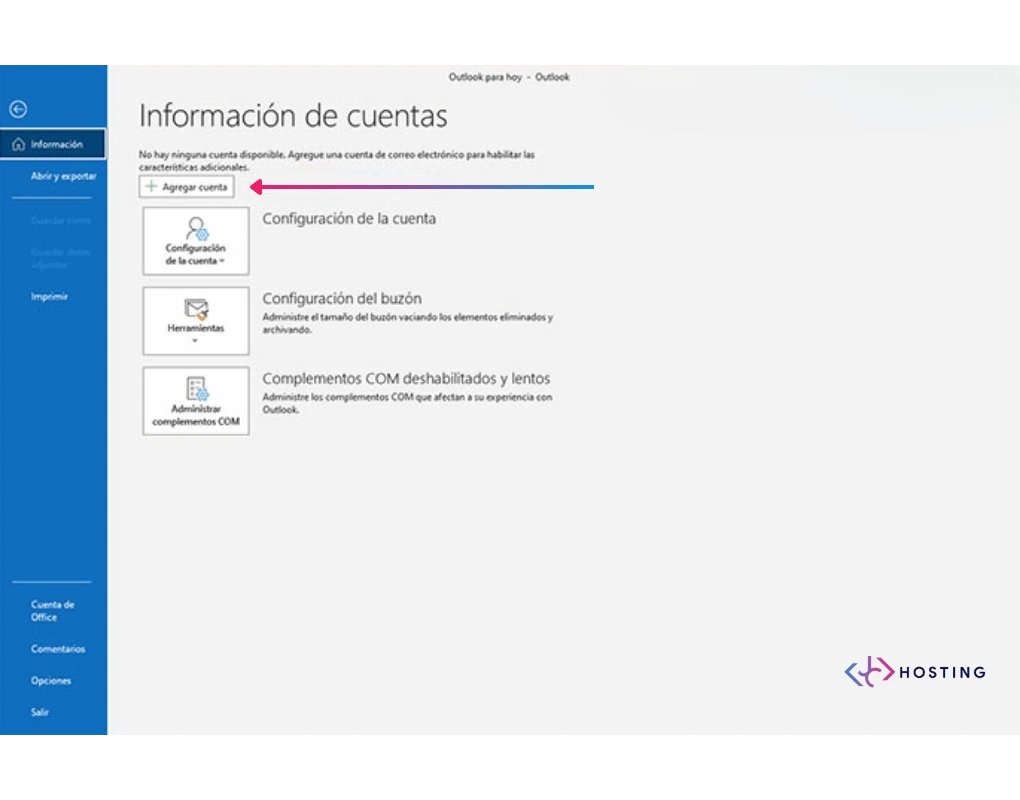
Open Outlook and go to the option to add a new email account.
Enter your corporate email address and continue. In some cases, Outlook will try to configure the account automatically. If it succeeds, the process ends here.
If Outlook cannot configure it automatically, don’t worry. We move on to manual configuration, which is just as simple.
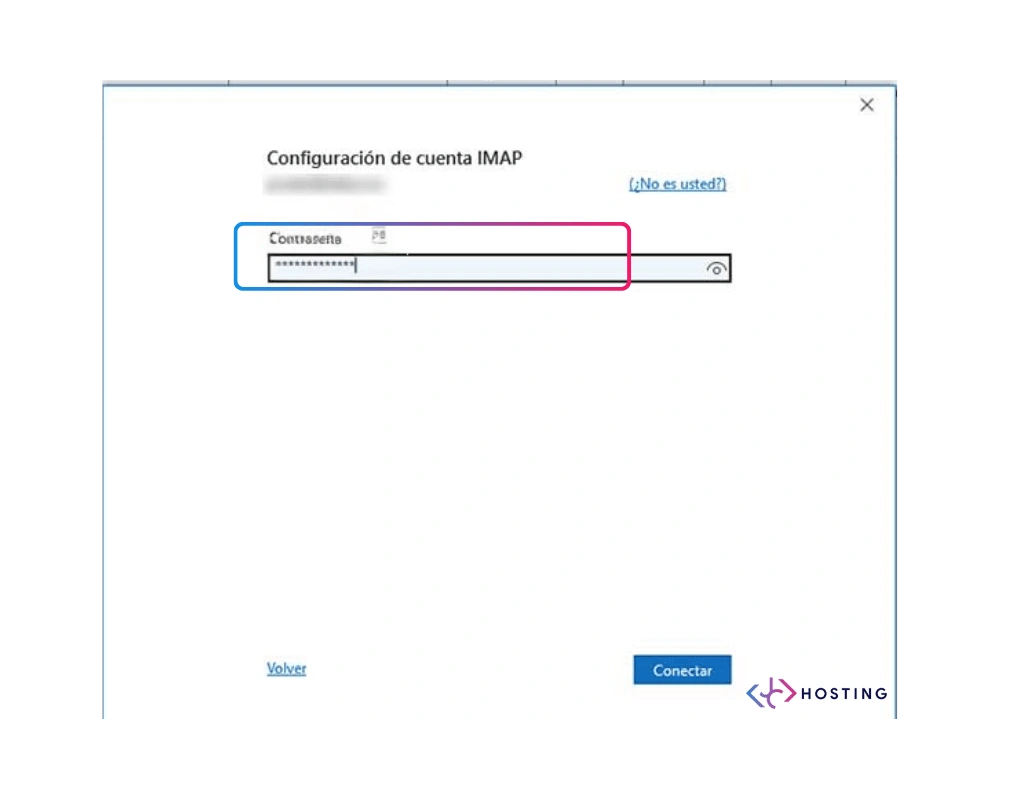
Choosing the Account Type: IMAP (Recommended Option)
At this point, Outlook will ask you to choose the account type. Two options appear: IMAP and POP.
The general recommendation — and the one we use by default at JC Hosting — is IMAP.
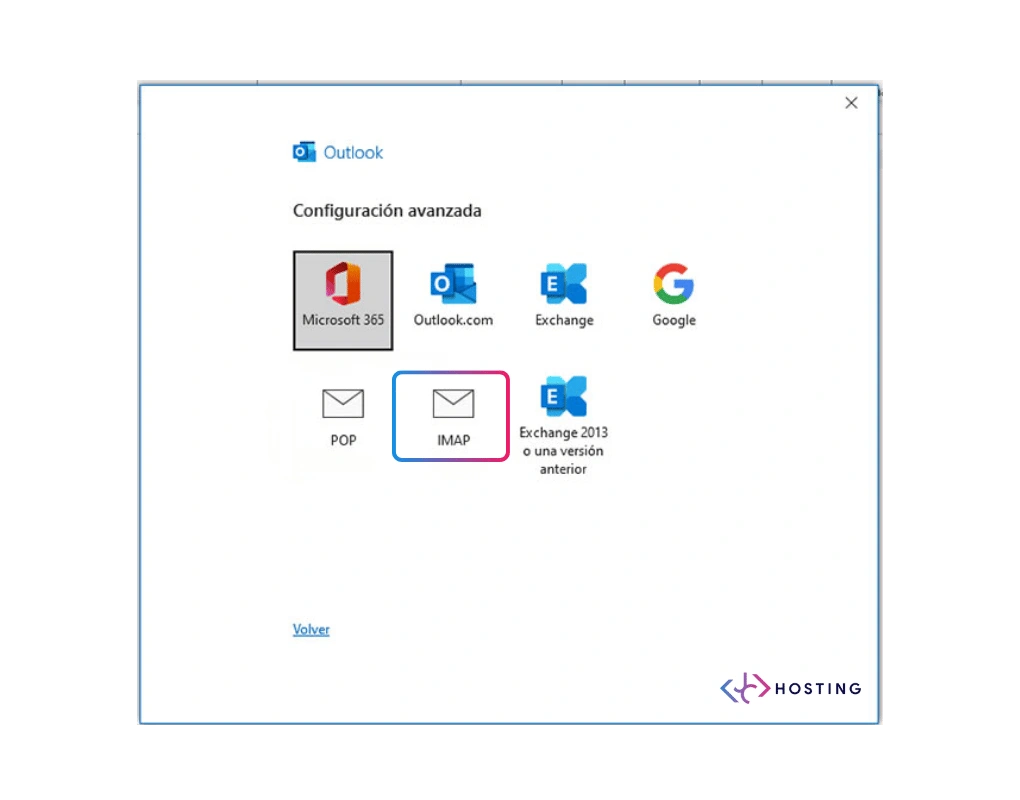
What Is IMAP and Why It Is the Best Option
IMAP is a system that keeps your email always synchronized with the server.
In simple terms:
- Emails are stored on the server
- You can use the same email account on multiple devices
- Everything stays synchronized
For example:
- If you read an email on your computer, it will appear as read on your phone
- If you delete a message, it is deleted on all devices
- If you create a folder, it appears everywhere
This makes IMAP the most convenient and secure option for businesses, especially if you work from more than one device.
For this reason, at JC Hosting we configure email accounts using IMAP as the default option, as it avoids problems and simplifies daily work.
Entering Server Details in Outlook
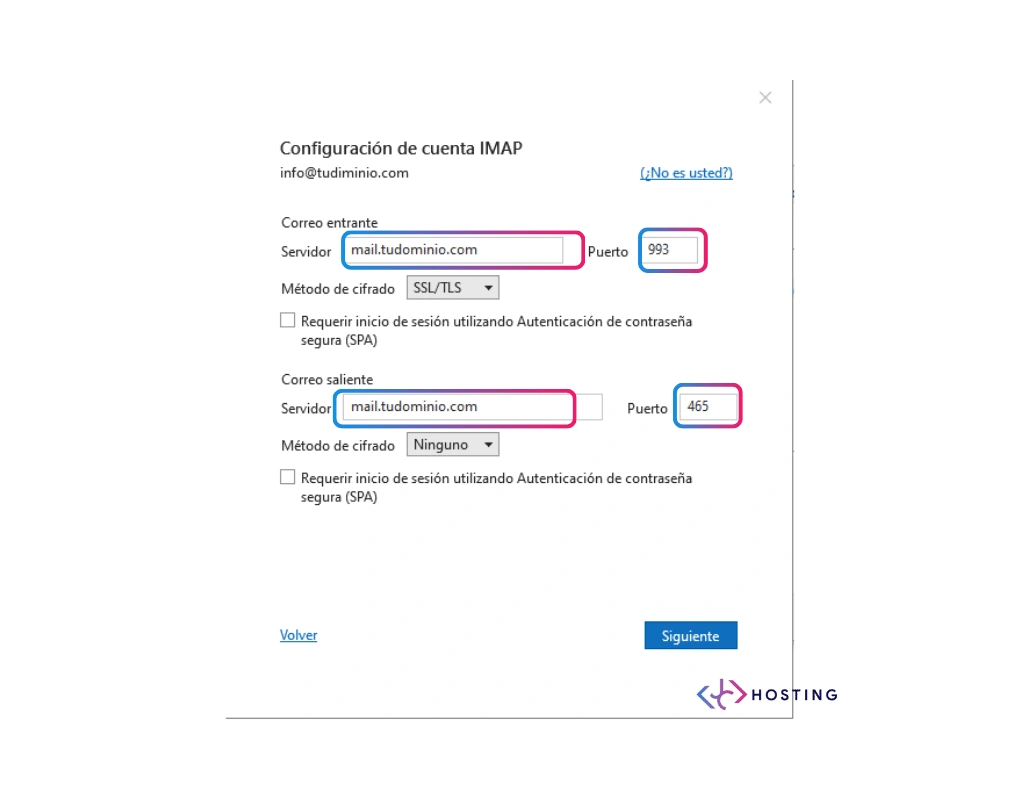
Once IMAP is selected, Outlook will ask for the server details.
Here you must enter the information available in your JC Hosting client panel:
- Incoming mail server
- Outgoing mail server
- Username (usually the full email address)
- Password
It is important to copy these details exactly as shown, as any small mistake can cause connection issues.
Configuring Security and Ports
Outlook will also ask for additional security-related settings.
Normally:
- A secure connection is used (SSL or TLS)
- Standard email ports are used
These settings ensure that emails are sent and received in an encrypted and secure way.
If something here is not configured correctly, it is common for emails not to send or for Outlook to repeatedly ask for the password.
Checking That the Email Works Correctly
Once the configuration is saved, Outlook will run an automatic test.
If everything is correct:
- Emails will start downloading
- You will be able to send messages without errors
- The account will be fully operational
If a warning appears, it is usually due to:
- An incorrect password
- A wrongly typed server address
- Incomplete or incorrect data
In that case, simply review the details or contact technical support.
Using Email on Multiple Devices
If you use Outlook on more than one computer or also on your mobile phone, IMAP is essential.
Thanks to IMAP:
- Everything stays synchronized
- No emails are lost
- There are no differences between devices
It is the most convenient way to work with corporate email today.
What Is POP and When Is It Used
In addition to IMAP, Outlook also allows email to be configured using POP.
POP works differently:
- Emails are downloaded to the device
- They may no longer remain on the server
- Synchronization between devices is limited
This means:
- If you read an email on one computer, you won’t see it on another
- If the device fails, emails can be lost
- It is not ideal for working from multiple locations
Does It Make Sense to Use POP Today?
Only in very specific cases, for example:
- If you use email on a single computer
- If you want to store all emails locally
Even so, for most businesses, IMAP remains the most recommended option.
Corporate Email as Part of Your Digital Infrastructure
Corporate email is not just about sending and receiving messages. It is part of your company’s digital infrastructure, along with the domain, hosting, and website.
At JC Hosting, we understand email this way:
- Domain-based email accounts
- Clear and simple configuration
- Access to all data from the client panel
- Technical support in English or Spanish when something doesn’t work
Email should help you work better, not become a constant technical problem.
Setting up your corporate email in Outlook is a simple process when you have the right information and choose the correct option.
Using IMAP, entering the server details correctly, and verifying the configuration avoids most common issues. And when those details are clear and easily accessible from the client panel, everything becomes much easier.
A properly configured corporate email is a basic tool for any business that wants to work with order, professionalism, and peace of mind.