Sometimes the problem is not on the website.
It may be in the browser cache, an old cookie, an open session, saved credentials or an extension interfering without you noticing. That is why, before jumping to conclusions, there is a very simple check worth doing: opening the page in an incognito window.
In hosting, web design, WordPress maintenance and technical support, this test is used far more often than it may seem. It is not a magic solution, but it is a quick way to separate real website errors from problems caused by the browser.
It helps you check whether a change is already visible to the user, review a website without being logged in, detect whether the browser is loading an old version of the page or rule out errors caused by cookies, extensions and saved sessions.
In other words: before thinking that a website is failing, it is worth checking whether you are simply seeing it with old information stored in the browser.
What exactly is incognito mode?
Incognito mode, private mode or InPrivate browsing changes name depending on the browser, but the idea is the same: opening a session separate from your usual browsing.
Chrome calls it incognito mode, Firefox shows it as a private window, Microsoft Edge uses the name InPrivate and Safari refers to private browsing. The name varies, but the way it works is very similar.
When you open a private window, the browser does not use the history, cookies or saved sessions from your normal browsing in the same way. This allows you to view a page with fewer previous conditions affecting what you see.
For example, if you are logged into WordPress, have a cookie from an online store, an active extension or an old version loaded in the cache, incognito mode helps you check the website from a cleaner environment.
However, it is important to understand clearly what it does and what it does not do.
Incognito mode does not mean total anonymity. It does not make you invisible on the internet. The website you visit can still receive technical information about your visit, your internet provider can still see connection activity and the network you are browsing from may also have some level of control or logging.
So, it is not a tool for disappearing from the internet. It is a tool for browsing without mixing the information from your usual session so much with the test you want to run.
Why incognito mode is useful when reviewing a website
When you work on a website, especially if it is built with WordPress, there are often several layers that can affect what you are seeing.
There may be browser cache, WordPress plugin cache, server cache, CDN, cookies, user sessions, plugins, browser extensions or even DNS still propagating.
This means two people can see different things on the same URL.
One person may see the new version of the website, while another continues seeing an old version. A form may work correctly in a clean window but cause problems in a session with saved data. An online store may behave strangely because the cart contains old information.
This is where incognito mode becomes a very useful first test. It does not replace a technical review, but it helps you know where to start.
When should you use an incognito window?
There are several cases where it is worth testing in incognito mode before touching settings, plugins or DNS.
1. When you have just made changes to a website
This is one of the most common uses.
If you have changed texts, images, colours, styles, menus, forms or plugins and you do not see the change reflected, opening the page in incognito mode can help you know whether the problem is simply your browser’s local cache.
Sometimes the change has been applied correctly, but your browser continues showing a previous version because it has stored it.
This often happens with design changes, CSS adjustments, image replacements, header modifications, button changes or content updates.
Before thinking Elementor has not saved properly, WordPress is failing or the server is not responding, test it in a private window. It is a quick check and can save many minutes of uncertainty.
2. When you want to see the website as a real user
When you are logged into WordPress, you often do not see exactly the same thing as someone visiting your website for the first time.
You may see the admin bar, session-based content, non-cached elements or different behaviour depending on the user role.
With an incognito window, you can review the website as a user with no active session, no previous cookies and no accumulated history.
This is especially useful for checking:
Sales pages.
Contact forms.
Call-to-action buttons.
Navigation menus.
Pop-ups.
Checkout processes.
Private pages or client areas.
In many cases, this review helps detect errors that do not appear when browsing as an administrator.
3. When you are checking forms, logins or online stores
Forms and online stores can behave differently depending on cookies, sessions or saved data.
For example, a form may not display correctly because the browser remembers an older version, a checkout page may keep old data or a user login may try to reuse saved credentials.
In online stores, this is even more common. Saved carts, old sessions, applied coupons, viewed products or shipping details can influence how the website behaves.
Opening the page in incognito mode helps you check whether the problem repeats in a clean session.
If everything works well in incognito mode, it is very likely that the problem is related to the browser, cookies or the previous session.
4. When you are migrating a website or checking DNS
When a website is being migrated to another server or DNS records have been changed, confusing situations can appear.
One user may see the new website, another may see the old one and another may experience temporary errors. This does not always depend on the browser, because DNS propagation has its own timings, but incognito mode can help remove some of the noise.
It does not solve DNS propagation or force the domain to point to the new server sooner, but it does prevent cookies, sessions and part of the browser cache from interfering with the review.
It is a useful test within a broader diagnosis, especially when you want to check whether what you are seeing is a real server problem or only a browser-conditioned view.
How to open an incognito window in each browser
Google Chrome
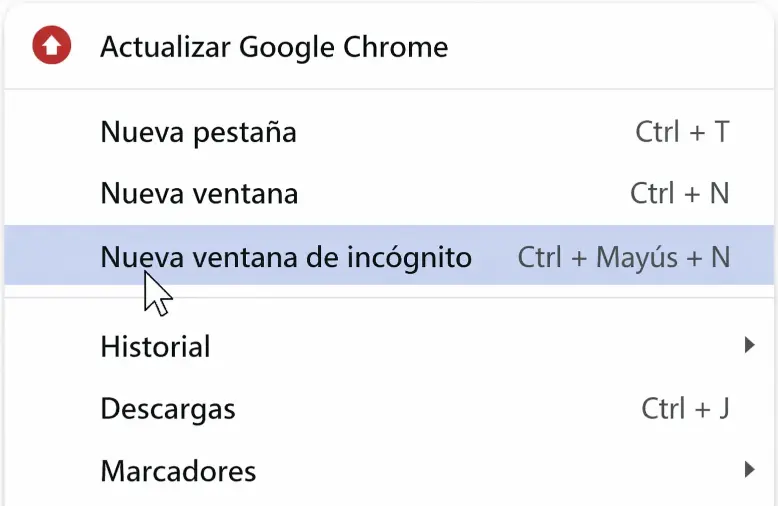
In Google Chrome, you can open an incognito window from the top-right menu by clicking the three dots and selecting New Incognito Window.
You can also use the keyboard shortcut:
Ctrl + Shift + N on Windows, Linux or ChromeOS.
⌘ + Shift + N on Mac.
When the window opens, you will see a different interface indicating that you are browsing in incognito mode.
Mozilla Firefox
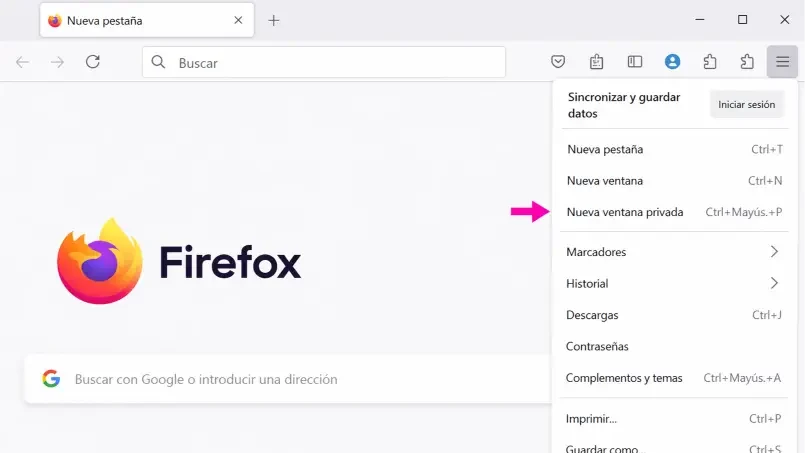
In Mozilla Firefox, this function appears as New Private Window.
You can open it from the browser’s main menu. You can also use the usual keyboard shortcut to open a private window.
Firefox clearly indicates when you are browsing in private mode so you can distinguish that session from normal browsing.
Microsoft Edge
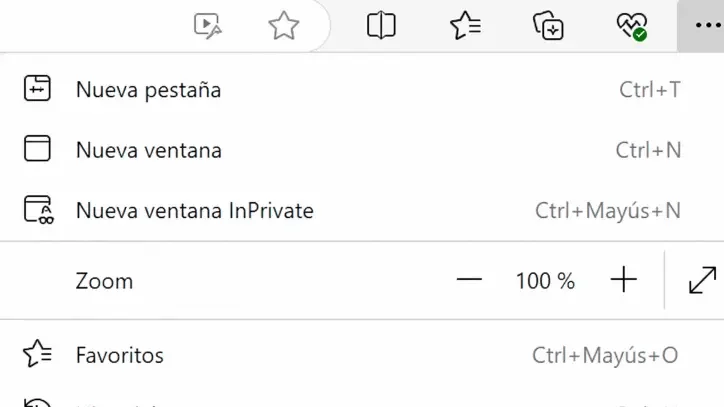
In Microsoft Edge, private mode is called InPrivate.
You can open it from the top-right menu of the browser and select New InPrivate Window.
You can also use the shortcut:
Ctrl + Shift + N.
It is very useful if you work in Windows environments and want to review a website without using your normal browser session.
Safari
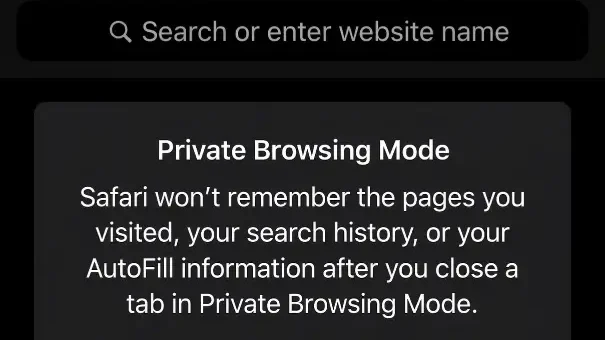
In Safari, the option is in the top menu, under File > New Private Window.
Apple calls it private browsing.
It is a very practical option for reviewing websites from Mac, iPhone or iPad without mixing your normal browsing with the test you want to carry out.
What many people believe, but is not true
Opening an incognito window does not fix every problem on its own.
It is a testing tool, not a repair.
It does not clear the server cache.
It does not fix a DNS error.
It does not solve a conflict between plugins.
It does not repair a badly configured SSL certificate.
It does not stop a down website from remaining down.
It does not remove real WordPress errors.
It does not replace a technical hosting review.
What it does do is help you separate the real problem from browser noise.
And that is very valuable when reviewing a website. Because a broken website is not the same as a browser showing an old version.
If it works in incognito mode but not in your normal window
That difference already gives you a very useful clue.
If a website works correctly in incognito mode but fails in your normal window, the problem is probably related to something stored or active in the browser.
It usually comes from one of these points.
Browser cache
The browser may be loading an old version of the website.
This often happens when recent changes have been made to design, images, styles or content. The website is already updated, but you continue seeing a previous version.
In this case, clearing the browser cache or forcing a full reload of the page can help.
Cookies or saved session
Cookies and saved sessions can change how a website behaves.
This is very common in online stores, private areas, forms, login platforms or websites with personalised content.
If the problem disappears in incognito mode, an old cookie or saved session may be causing the conflict.
Browser extensions
Extensions can interfere far more than it may seem.
Ad blockers, privacy tools, automatic translators, SEO extensions, visual inspectors or development plugins can alter how a website loads.
Sometimes they block scripts, hide elements, modify styles or prevent a form from working correctly.
That is why, if a website only fails in your usual browser, it is also worth reviewing the installed extensions.
Autofill or old credentials
Browsers save login details, form data, names, emails and passwords.
This can be useful, but sometimes it creates strange behaviour. For example, it may fill in the wrong fields, try to log in with old details or interfere with forms that have recently changed.
Incognito mode reduces this problem because it does not work in the same way with this saved data.
If the website also fails in incognito mode
If the website also fails in a private window, then the problem is probably not only in the browser.
In that case, you need to look deeper.
There may be a server problem, a bad cache configuration, an expired or incorrectly installed SSL certificate, a plugin error, an incomplete update, a migration that has not finished properly, a DNS problem or a lack of hosting resources.
It may also happen that the website loads, but very slowly. In that case, you would need to review server response time, resource usage, the database, heavy plugins, oversized images or badly applied cache settings.
At this point, incognito mode has already done its job: it has helped you rule out that the problem is only browser-related.
From there, the diagnosis needs to be more technical.
Practical example: you changed an image and it is not showing
Imagine you have replaced an image on your website’s homepage.
You enter the page and still see the old image. Your first thought may be: “it did not save properly” or “the website is not updating”.
But before changing more things, you open the page in incognito mode.
If the new image appears in incognito mode, the change has been made. The problem is that your usual browser is loading a previous version.
If the old image also appears in incognito mode, then you need to review other points: WordPress cache, server cache, CDN or whether the image has really been replaced correctly.
This simple test prevents you from touching settings that may not need to be touched.
Practical example: a form does not work
Another common case is a contact form.
It may happen that in your normal window the form does not send, does not show the confirmation message or loads in a strange way.
If it works in incognito mode, a cookie, an old session, an extension or autofill data may be interfering.
If it does not work in incognito mode either, then you need to review the form configuration, the sending system, possible JavaScript errors, the server email setup or the plugin managing the form.
Again, incognito mode does not fix the problem, but it helps classify it.
When you should not rely only on incognito mode
Incognito mode is a very useful first check, but it should not be the only test when the problem affects other users, devices or locations.
If several people see the same error, if the website also fails from mobile, if the form does not send in any browser or if the domain does not load correctly from different connections, the problem is probably not only in the browser.
In these cases, it is worth carrying out a more complete review:
Check the website from another device.
Try another connection, for example mobile data.
Check whether the SSL certificate is active.
Check whether the domain points to the correct server.
Look for errors in WordPress or in a plugin.
Review the server cache or cache plugin.
Analyse whether the hosting is reaching its resource limits.
This difference matters because incognito mode helps rule out local problems, but it does not confirm by itself that the website is technically fine.
If the problem only happens in your browser, we are probably talking about cache, cookies, sessions or extensions. But if the problem repeats across different browsers, devices and connections, then the technical side of the website and hosting needs to be reviewed.
That is why doing this check before opening a support ticket can save time and make the diagnosis more accurate.
Practical conclusion
Opening an incognito window is a simple, quick and very useful test.
It does not replace a technical diagnosis, but it does help you take the right first step. And in many cases, that first step prevents you from wasting time touching plugins, caches or server settings when the problem was only in the browser.
Before thinking that your website is broken, that the change has not been applied or that the form has stopped working, test it from a private window.
In many cases, this simple action will clarify whether the problem is really on the website or only in the way you are seeing it.
And if, after testing it, you continue seeing errors, at JC Hosting we help you review what is really happening behind the scenes: cache, DNS, SSL, server resources, WordPress conflicts, migrations, hosting configuration and everything that can affect whether a website loads as it should.