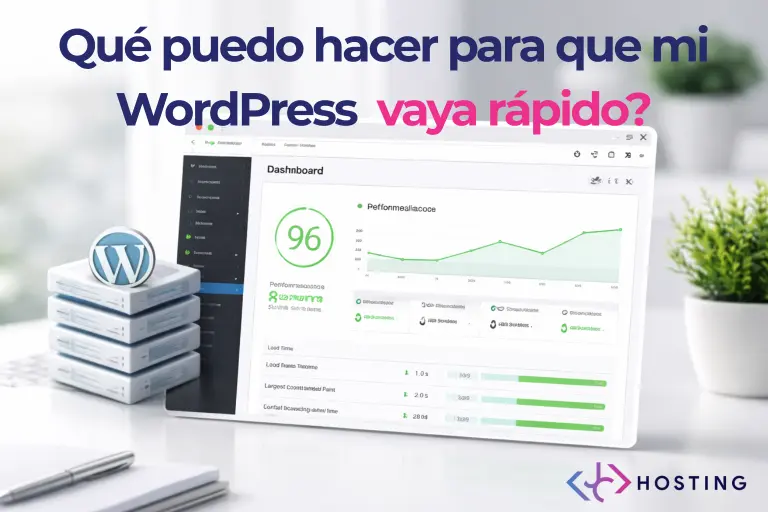
Redis is a tool designed to improve the performance of web applications by using memory instead of repeatedly querying the database. In WordPress environments, it becomes especially useful when a website starts to grow in traffic, content, or overall complexity.
In this guide, we explain how to enable Redis from cPanel and activate it properly in WordPress, step by step, without the need to modify any code.
What Is Redis and How It Works in WordPress
Redis is an in-memory data storage system that allows WordPress to store information it uses frequently, such as database queries or system objects.
When Redis is enabled:
- WordPress avoids repeating identical database queries
- Database load is reduced
- Server response times improve
- The WordPress admin area becomes more responsive
This type of caching is known as object cache and operates at an internal level, complementing page caching systems.
When Is It Recommended to Use Redis
Redis is especially recommended for:
- WordPress websites with consistent traffic
- Online stores
- Projects with many active plugins
- Sites where the admin dashboard feels slow
On very small or low-traffic websites, the impact may be minimal. However, for growing projects, Redis is usually a logical optimization step.
Prerequisites
Before enabling Redis, make sure that:
- Your hosting service supports Redis
- The control panel is cPanel
- The website is built with WordPress
No advanced technical knowledge is required.
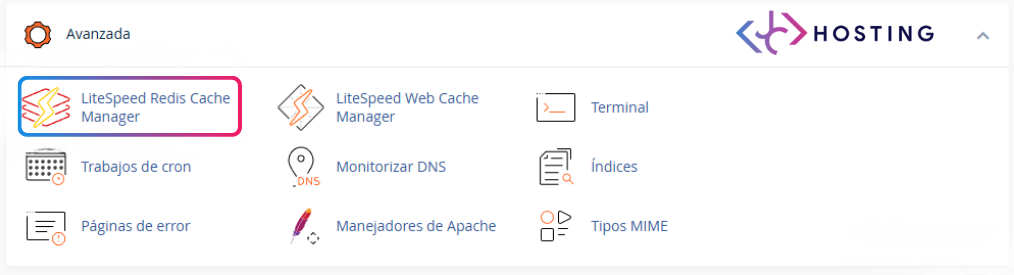
Step 1. Access Redis from cPanel
Log in to your hosting account and open the cPanel dashboard.
Inside cPanel
- Locate the Software section
- Click on Redis Manager
Step 2. Enable Redis at Server Level
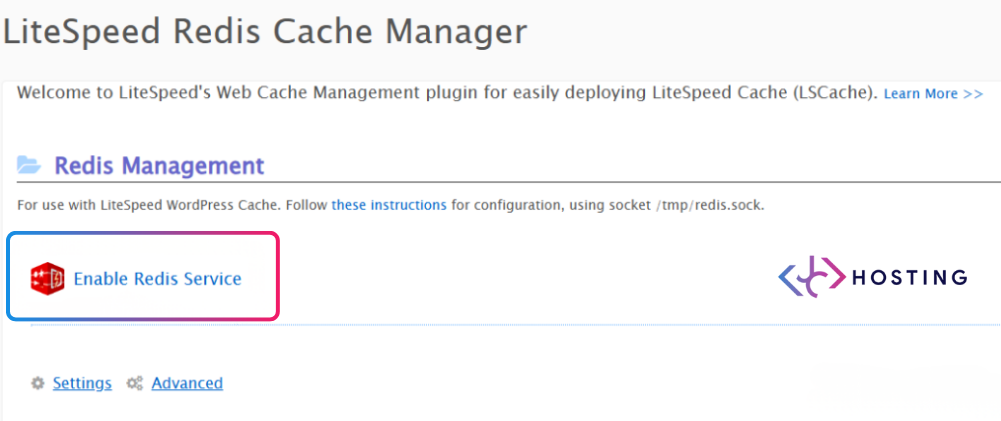
Once inside Redis Manager:
- Click the Enable button
- Wait until the status shows that Redis is active
At this point, Redis is enabled on the server, but it is not yet connected to WordPress.
Step 3. Install the Redis LItespeed Caché
To allow WordPress to communicate with Redis, a specific plugin is required.
From the WordPress admin dashboard
- Go to Plugins → Add New
- Search for Redis LItespeed Caché
- Install and activate the plugin
This plugin manages the connection between WordPress and Redis.
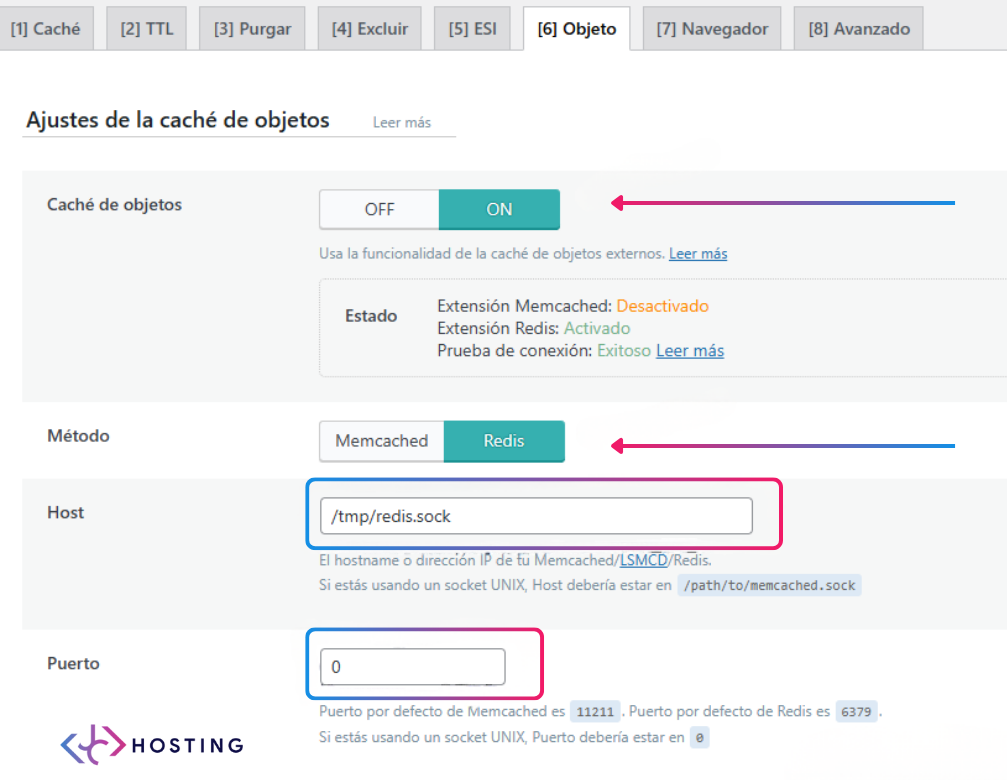
Technical requirements for Redis in WordPress
For Redis to work correctly in WordPress, three fundamental aspects must be covered.
The first is to enable Redis from cPanel. Within the control panel, access Redis Manager and click Enable. This step activates the Redis service on the server, reserves RAM memory, and prepares the system to receive connections from WordPress. Without this step, the service will not be available.
The second is to have WordPress hosting with Redis included. Not all providers offer Redis in their plans. Some reserve it for VPS or advanced plans, while others include it by default. An adequate hosting must have sufficient RAM memory (at least 1-2 GB) and technical support that understands Redis. If your current hosting does not offer it, consider migrating to one that includes it.
The third is to enable Redis Object Cache. Once Redis is active on the server, you need to install a plugin that connects WordPress with Redis. The most recommended one is Redis Object Cache, available for free in the WordPress repository. After installing and activating it, go to Settings > Redis and click the Enable Object Cache button. From that moment on, WordPress will start storing repetitive queries in Redis, reducing the load on the MySQL database and improving TTFB.
With these three points covered, Redis will work correctly and site performance will improve noticeably, especially on dynamic pages or those with personalized content.
How to Check That Redis Is Working Properly
Common indicators that Redis is working correctly include:
- The plugin shows an active connection
- Faster website response times
- Reduced database load
- Smoother navigation in the WordPress admin area
- TTFB (Time To First Byte) improves noticeably, as the server takes less time to generate the first response
The benefits are more noticeable on websites with traffic or dynamic functionality.
Redis and Other Caching Systems
Redis does not replace page caching; it works as a complementary layer.
It can safely coexist with:
- Server-level caching
- Page caching
- WordPress optimization plugins
Each caching system operates at a different level of performance optimization.
Final Considerations
Enabling Redis is a progressive improvement designed for projects that are growing and need greater stability and performance. Activating it from cPanel and WordPress is simple and reversible, making Redis a safe and effective option for optimizing the performance of a WordPress website.
If you want to take your website’s performance to the next level, don’t miss our [complete guide to fast WordPress].